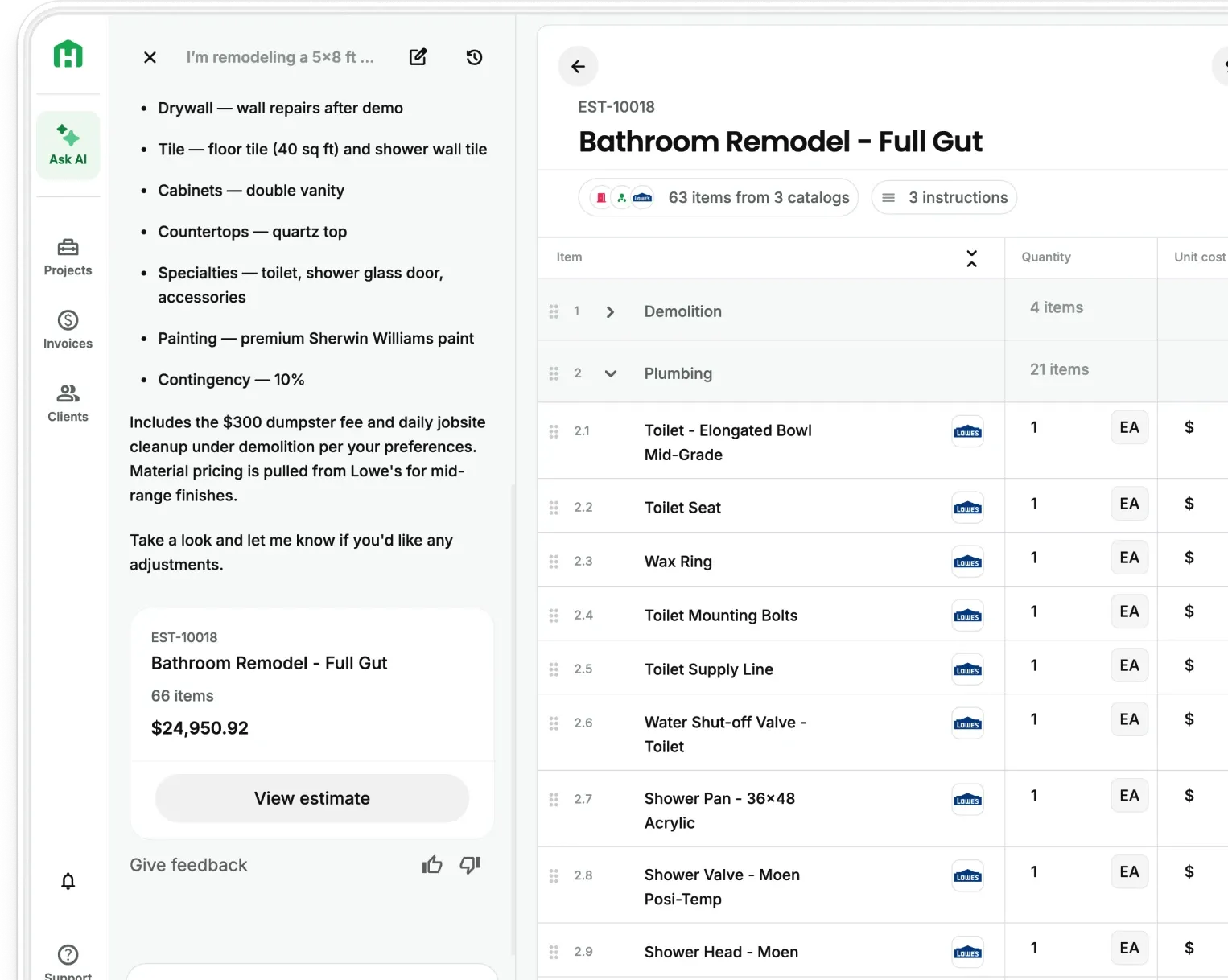
Your crew clocks from their phone, geofencing helps you keep track of who’s actually on site, and approved hours become real labor cost inside the project budget.
Pro and Scale customers can now track crew time inside Handoff. Managers can review and approve hours, see how crew time lines up with the project schedule, and turn approved hours into real labor cost using the hourly rate set for each person. That means you can see what’s happening with labor before the job is over. Available now on Handoff Pro and Scale plans.
What happens when crew hours live outside the project
When crew hours come in through paper timesheets, texts, or another app, somebody still has to figure out how those hours line up with the project.
That also leaves your labor data disconnected from the estimate and schedule. You know what you planned to spend and how long the work should take, but you have less visibility into what’s actually happening on site until those hours are pulled together later.
Time Tracking keeps those hours connected to the project, so you can see who’s showing up, how the schedule is progressing, and what labor is costing while there’s still time to adjust.
How your crew clocks in
The crew side is deliberately boring, which is the point. They already have Handoff on their phone.
- Open the app and tap Clock In
- Pick the project they are working on
- The timer starts and keeps running in the background, even if they close the app or it reloads
- At the end of the day, tap Clock Out, add break time, and add a daily log if you have that turned on
The entry lands in Timesheets with the clock-in location attached, giving managers more context when they review the hours.
A crew member who is not on a project yet can still clock in. Somebody starting the day at the supply house or working in the office across several jobs is still on the clock. That gives you one place to review crew hours as the project moves through the schedule.
What managers see
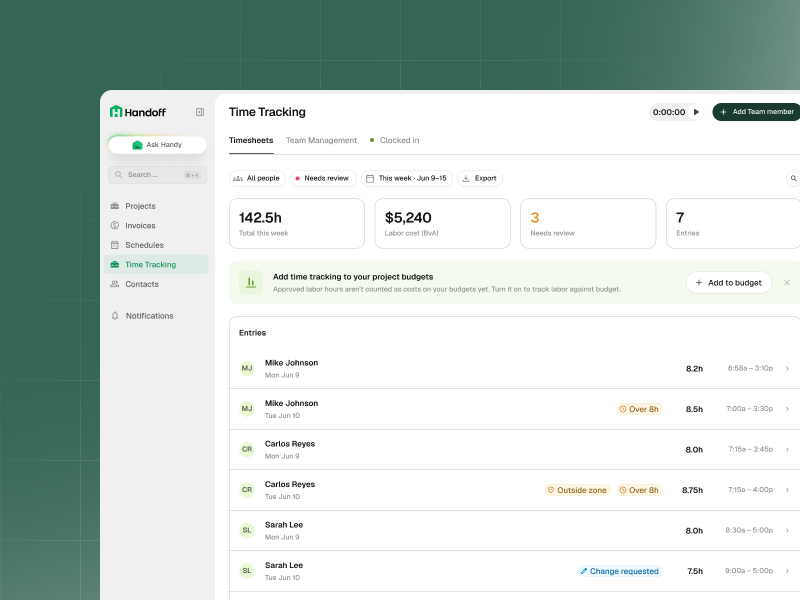
Timesheets is one list with filters for person, project, and date range.
From there you can approve an entry, flag one that looks wrong, or send it back with a request for changes. You are not chasing anybody for a corrected paper sheet.
Permissions matter here. Hourly rates and team-wide timesheets are admin-only. A crew member without team-level access sees their own entries and nothing else.
How hours become labor cost
This is the part that connects to the rest of Handoff.
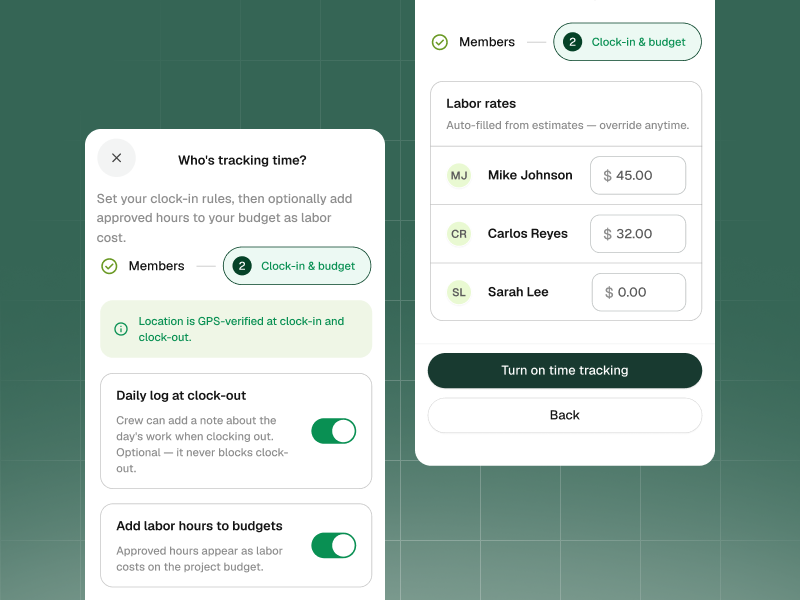
You set an hourly rate for each person during setup. Once you approve time entries, those approved hours can be pushed into the project budget at the rate you set. The labor line in your budget starts reflecting what the crew actually worked.
Because your budget is already built from the approved estimate, you can compare what you priced for labor against what you’re actually spending while the job is still running. Pair that with the project schedule and you have a clearer view of whether the hours and labor dollars are tracking the way you planned.
How to set it up
Setup is an owner or admin job and takes a few minutes.
- Open the Time Tracking setup wizard
- Choose which team members track time
- Set an hourly rate for each person
- Decide whether crews add a daily log at clock-out
- Have someone clock in on a live project to see the entry land in Timesheets
Available now on Handoff Pro and Scale plans
Time Tracking is live for Pro and Scale accounts.
On Pro, you can enable it on for team members with a paid seat. On Scale, you can track subcontractors and vendors through the Subcontractor Portal, giving you more visibility into who’s showing up, how many hours are going into the project, and where those labor dollars are going.
If you are on a lower plan, see what is included in Pro or reach out to the team.
Other FAQs about Time Tracking for your crews
Does the timer stop if my crew closes the app?
No. The timer keeps running in the background through a close or a reload. The entry is still there when they clock out.
What if someone is not on a specific job that day?
They can clock in without picking a project. The time is recorded, it just is not tied to a project budget.
Does my crew need location enabled to use Time Tracking?
No. They can still clock in and out if location permission is turned off. Handoff won’t have location information for that entry, and you’ll be notified so you can review it before approving the time.